Pong Game
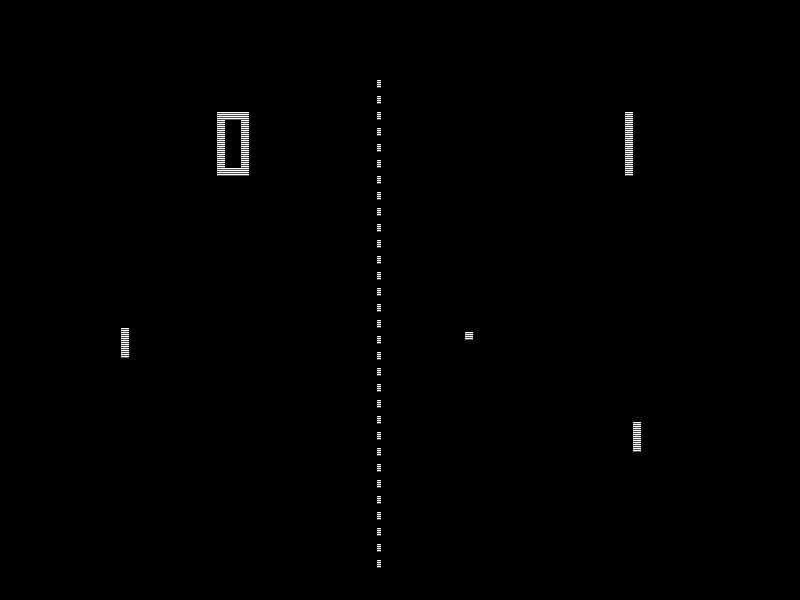
《乓》(英語:Pong)是雅達利在1972年11月29日推出的一款投幣式街機遊戲。《乓》是一款乒乓球遊戲,其英文名稱「Pong」來自乒乓球被擊打後所發出的聲音。《乓》很多時候也被認為是電子遊戲歷史上第一個街機電子遊戲。在此遊戲中,玩家的目的就是在模擬乒乓球比賽中奪取高分以擊敗電腦玩家。此遊戲的開發者為艾倫·奧爾康。
[TOC]
0. 本章重點
- 建立processing.py程式最基本函數
- 劃圓和長方型
- 認識變數,認識
global - 認識keyPressed鍵盤輸入
1. 開始遊戲
def setup():
    size(800, 600)
def draw():
    ellipse(width/2, height/2, 15, 15)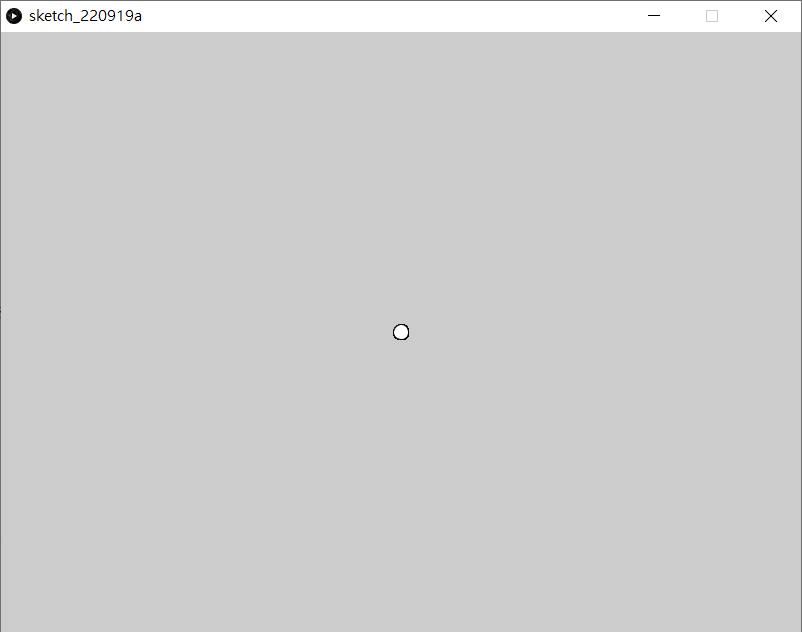
- Processing.py程式碼內置兩個函數
setup()- 只會在程式執行時執行一次
- 通常用來初始化程式
draw()- 類似Arduino中的
loop() - 會不斷重複執行
- 通常用來實現動畫和互動等功能
- 類似Arduino中的
width和height是關鍵字- 對應
size()中的長和寬
- 對應
- 下一步,就要令中間的球移動
2 令球移動
創建一個會動的球
ballX=0
ballY=0
ballSpeedX=0
ballSpeedY=0

def setup():
    global ballX, ballY, ballSpeedX, ballSpeedY

    size(800, 600)
    ballX = width/2
    ballY = height/2
    ballSpeedX = -1
    ballSpeedY = random(-2, 2)

def draw():
    global ballX, ballY, ballSpeedX, ballSpeedY

    background(30)
    ballX += ballSpeedX
    ballY += ballSpeedY
    ellipse(ballX, ballY, 15, 15)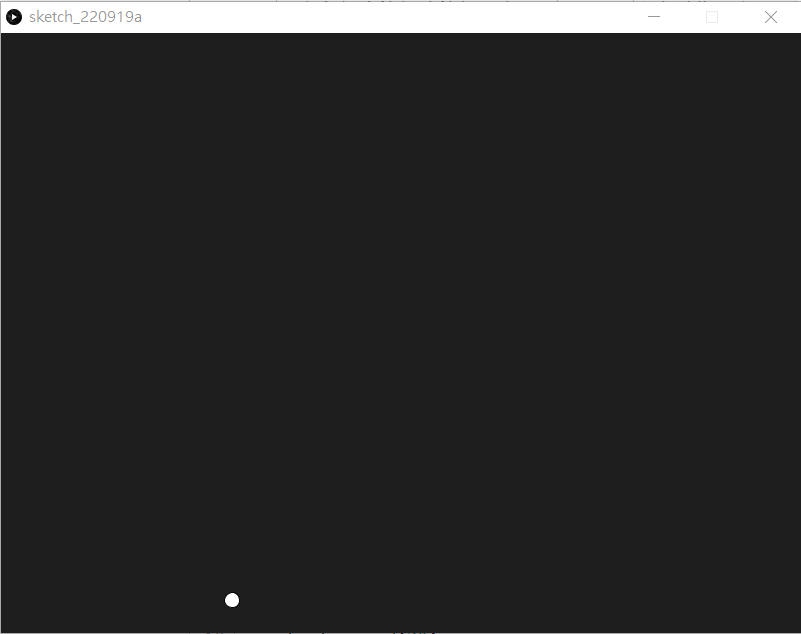
ballX=0
ballY=0
ballSpeedX=0
ballSpeedY=0創建4個變數,分別為ballX, ballY, ballSpeedX和ballSpeedY。對應的是球的x和y座標,球的x和y的速度。之後在setup()中預設球的位置和初速。(之所以不在一開始宣告就設定它們的值,而是在setup()中,是因為之後restart game時會方便很多)
global ballX, ballY, ballSpeedX, ballSpeedYPython語言跟其他語言比有點特別,所有的global變數,不需要特別宣告,就可以在所有函數中應用,但如果要在函數中要改變global變數的話,就需要在函數之內用keyword global將global變數宣告一次。
ballX = width/2
ballY = height/2
ballSpeedX = -1
ballSpeedY = random(-2, 2)一開始球在瑩幕正中,預設向player1(左邊)放向發去,所以ballSpeedX一開始是-1。
ballX += ballSpeedX
ballY += ballSpeedY之後每次draw()不停重覆時,就更新球的x和y座標,將其加上球的速度,這樣球就會不停移動。
令球懂得撞牆反彈
ballX=0
ballY=0
ballSpeedX=0
ballSpeedY=0

def setup():
    global ballX, ballY, ballSpeedX, ballSpeedY

    size(800, 600)
    ballX = width/2
    ballY = height/2
    ballSpeedX = -1
    ballSpeedY = random(-2, 2)

def draw():
    global ballX, ballY, ballSpeedX, ballSpeedY

    background(30)
    ballX += ballSpeedX
    ballY += ballSpeedY

    if ballY <= 0 or ballY >= height:
        ballSpeedY *= -1;

    ellipse(ballX, ballY, 15, 15)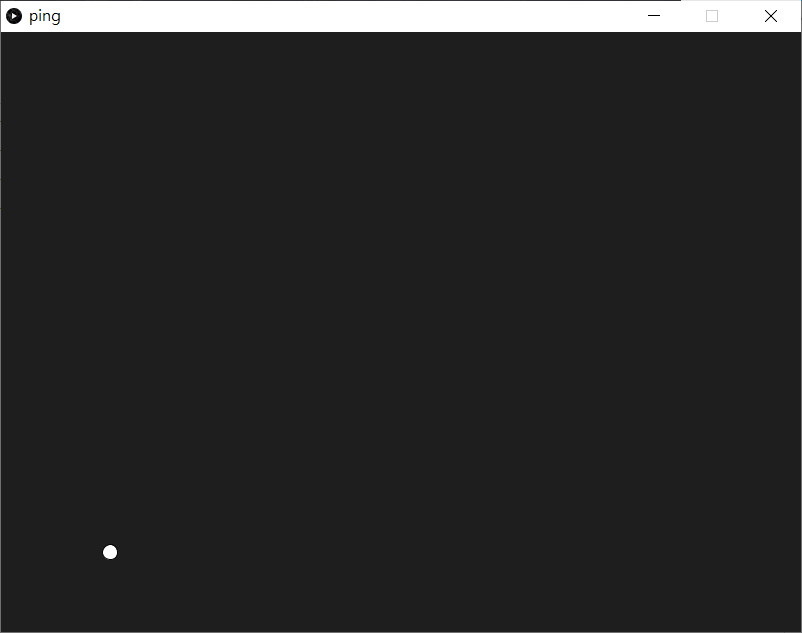
if ballY <= 0 or ballY >= height:
ballSpeedY *= -1;要令球懂得在上和上反彈,就要知道它的y座標,所以就用if去判斷它的y座標,如果是少於0或者大於height的話,則代表球已經出界,超出瑩幕範圍,這時就將球的y速度反轉,球就會反彈。(這也是為什麼需要特別去設定一個球的x和y速度的變數,而不直接用ballX+=1或ballY+=1)
3. 製作player1球拍
製作球拍
ballX=0
ballY=0
ballSpeedX=0
ballSpeedY=0

player1X = 0
player1Y = 0

def setup():
    global ballX, ballY, ballSpeedX, ballSpeedY, player1X, player1Y

    size(800, 600)
    ballX = width/2
    ballY = height/2
    ballSpeedX = -1
    ballSpeedY = random(-2, 2)

    player1X = 10
    player1Y = height/2

def draw():
    global ballX, ballY, ballSpeedX, ballSpeedY, player1X, player1Y

    background(30)
    ballX += ballSpeedX
    ballY += ballSpeedY

    if ballY <= 0 or ballY >= height:
        ballSpeedY *= -1;

    ellipse(ballX, ballY, 15, 15)

    if keyPressed:
        if key == 'W' or key == 'w':
            player1Y -= 3
        if key == 'S' or key == 's':
            player1Y += 3

    rectMode(CENTER)
    rect(player1X, player1Y, 10, 50)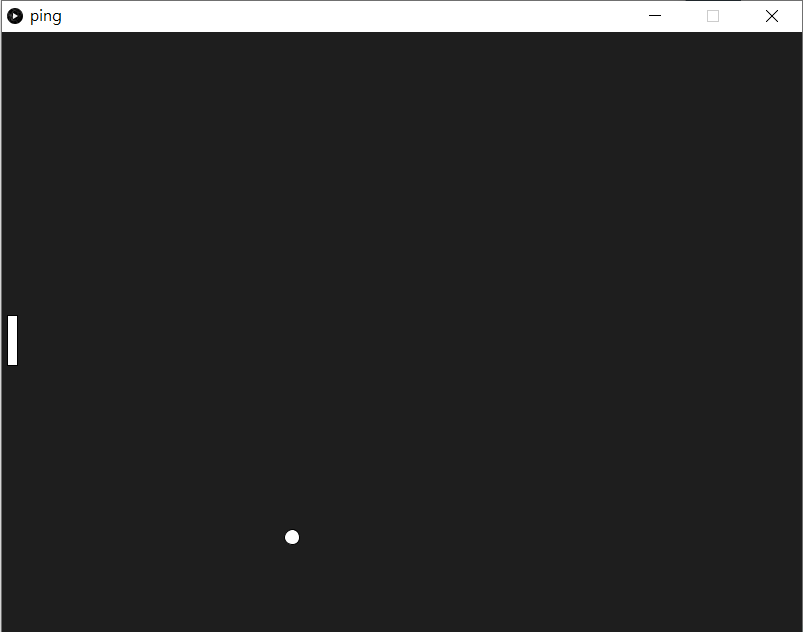
下一部就是要製作player的球拍,球拍我們用一個長方形去表示。
player1X = 0
player1Y = 0宣告2個變數,是球拍中心的xy座標位置。
player1X = 10
player1Y = height/2在setup()處,設定球拍的初始位置。
if keyPressed:
	if key == 'W' or key == 'w':
		player1Y -= 3
	if key == 'S' or key == 's':
		player1Y += 3

rectMode(CENTER)
rect(player1X, player1Y, 10, 50)在draw()的最下面,加入控制球拍的指令。keyPress為keyword,當你鍵盤任意按鍵初按下時就會是True,相反則為False。key也是keyword,用來回傳鍵盤按下的鍵相應的值,但值得注意的是,key並不會自動測空,舉例如果按了一下k,在按下一個按鍵之前,key會一直都是k
令球拍懂得反彈球
ballX=0
ballY=0
ballSpeedX=0
ballSpeedY=0

player1X = 0
player1Y = 0

def setup():
    global ballX, ballY, ballSpeedX, ballSpeedY, player1X, player1Y

    size(800, 600)
    ballX = width/2
    ballY = height/2
    ballSpeedX = -1
    ballSpeedY = random(-2, 2)

    player1X = 10
    player1Y = height/2

def draw():
    global ballX, ballY, ballSpeedX, ballSpeedY, player1X, player1Y

    background(30)
    ballX += ballSpeedX
    ballY += ballSpeedY

    if ballY <= 0 or ballY >= height:
        ballSpeedY *= -1

    if ballX <= 10 and ballY >= player1Y - 25 and ballY <= player1Y +25:
        ballSpeedX *= -1

    ellipse(ballX, ballY, 15, 15)

    if keyPressed:
        if key == 'W' or key == 'w':
            player1Y -= 3
        if key == 'S' or key == 's':
            player1Y += 3

    rectMode(CENTER)
rect(player1X, player1Y, 10, 50)if ballX <= 10 and ballY >= player1Y - 25 and ballY <= player1Y +25:
ballSpeedX *= -1加入這一段程式,當球的中心座標符合三個範圍的話,球就會反彈(為簡化程式,沒有計算球的半徑,你可以自行考慮加入)
4. 製作player2球拍
ballX=0
ballY=0
ballSpeedX=0
ballSpeedY=0
player1X = 0
player1Y = 0
player2X = 0
player2Y = 0
def setup():
global ballX, ballY, ballSpeedX, ballSpeedY, player1X, player1Y, player2X, player2Y
size(800, 600)
ballX = width/2
ballY = height/2
ballSpeedX = -1
ballSpeedY = random(-2, 2)
player1X = 10
player1Y = height/2
player2X = width - 10
player2Y = height/2
def draw():
global ballX, ballY, ballSpeedX, ballSpeedY, player1X, player1Y, player2X, player2Y
background(30)
ballX += ballSpeedX
ballY += ballSpeedY
if ballY <= 0 or ballY >= height:
ballSpeedY *= -1
if ballX <= 10 and ballY >= player1Y - 25 and ballY <= player1Y +25:
	ballSpeedX *= -1
if ballX >= width - 10 and ballY >= player2Y - 25 and ballY <= player2Y +25:
ballSpeedX *= -1
ellipse(ballX, ballY, 15, 15)
if keyPressed:
if key == 'W' or key == 'w':
player1Y -= 3
if key == 'S' or key == 's':
player1Y += 3
if key == 'O' or key == 'o':
player2Y -= 3
if key == 'L' or key == 'l':
player2Y += 3
rectMode(CENTER)
rect(player1X, player1Y, 10, 50)
rect(player2X, player2Y, 10, 50)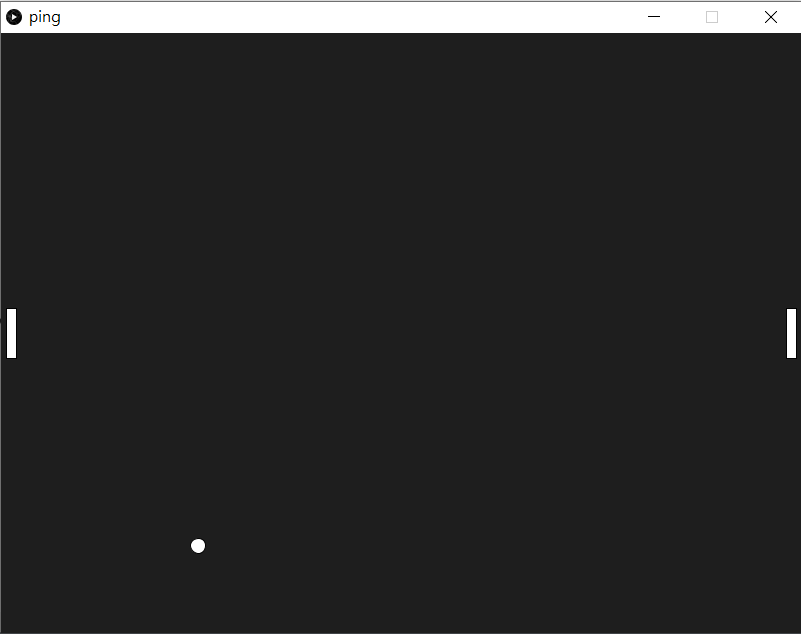
player2X = 0
player2Y = 0同樣地,加入變數去記錄球拍2的座標。
player2X = width - 10
player2Y = height/2在setup()中設定初始值。
if ballX >= width - 10 and ballY >= player2Y - 25 and ballY <= player2Y +25:
ballSpeedX *= -1跟player1的球拍一樣,player2的球拍,要加入判斷式,如果球的x座標大於width-10,即player2球拍的右邊,同一時間又介乎於球拍的y輻範圍當中,就會反彈。
rect(player2X, player2Y, 10, 50)最後將player2的球拍畫出來。
5. 計分
ballX=0
ballY=0
ballSpeedX=0
ballSpeedY=0

player1X = 0
player1Y = 0

player2X = 0
player2Y = 0

score1 = 0
score2 = 0

def setup():
    global ballX, ballY, ballSpeedX, ballSpeedY, player1X, player1Y, player2X, player2Y, score1, score2

    size(800, 600)
    ballX = width/2
    ballY = height/2
    ballSpeedX = -1
    ballSpeedY = random(-2, 2)

    player1X = 10
    player1Y = height/2

    player2X = width - 10
    player2Y = height/2

    score1 = 0
    score2 = 0

def draw():
    global ballX, ballY, ballSpeedX, ballSpeedY, player1X, player1Y, player2X, player2Y, score1, score2

    background(30)
    ballX += ballSpeedX
    ballY += ballSpeedY

    if ballY <= 0 or ballY >= height:
        ballSpeedY *= -1

    if ballX <= 10 and ballY >= player1Y - 25 and ballY <= player1Y +25:
        ballSpeedX *= -1

    if ballX >= width - 10 and ballY >= player2Y - 25 and ballY <= player2Y +25:
        ballSpeedX *= -1

    if ballX <= 0:
        score2+=1
        ballX = width/2
        ballY = height/2
        ballSpeedX = 1
        ballSpeedY = random(-2, 2)

    if ballX >= width:
        score1+=1
        ballX = width/2
        ballY = height/2
        ballSpeedX = -1
        ballSpeedY = random(-2, 2)

    ellipse(ballX, ballY, 15, 15)

    if keyPressed:
        if key == 'W' or key == 'w':
            player1Y -= 3
        if key == 'S' or key == 's':
            player1Y += 3
        if key == 'O' or key == 'o':
            player2Y -= 3
        if key == 'L' or key == 'l':
            player2Y += 3
    rectMode(CENTER)
    rect(player1X, player1Y, 10, 50)
    rect(player2X, player2Y, 10, 50)

	textSize(60)
	textAlign(CENTER, CENTER)
    text(score1, width/4, 50)
    text(score2, width*3/4, 50)
    stroke(255)
    line(width/2, 10, width/2, height - 10)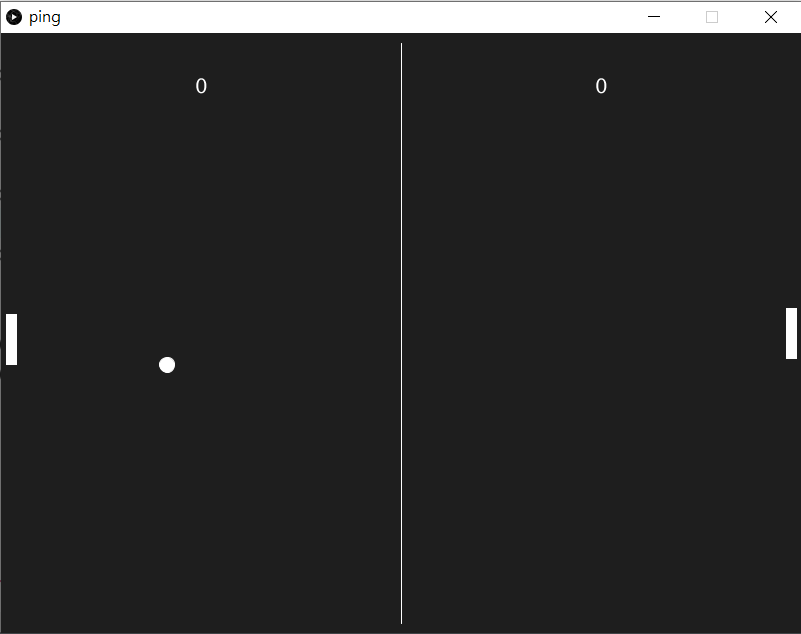
score1 = 0
score2 = 0先宣告兩個變數去儲存兩個玩家的分數。再在setup()時設定為0
if ballX <= 0:
	score2+=1
	ballX = width/2
	ballY = height/2
	ballSpeedX = 1
	ballSpeedY = random(-2, 2)

if ballX >= width:
	score1+=1
	ballX = width/2
	ballY = height/2
	ballSpeedX = -1
ballSpeedY = random(-2, 2)如果球的x座標少於0或者大於width,則代表球已經出了界,這時就要為相對應的玩家加上一分,而球的球速也要重新放到起始點再來一局。
textSize(60)
textAlign(CENTER, CENTER)
text(score1, width/4, 50)
text(score2, width*3/4, 50)
stroke(255)
line(width/2, 10, width/2, height - 10)最後,在draw()的最底下,加上文字,用來顯示兩個分數。
6. 重啟遊戲
ballX = 0
ballY = 0
ballSpeedX = 0
ballSpeedY = 0

player1X = 0
player1Y = 0

player2X = 0
player2Y = 0

score1 = 0
score2 = 0

def setup():
    global ballX, ballY, ballSpeedX, ballSpeedY, player1X, player1Y,  player2X, player2Y, score1, score2

    size(800, 600)
    ballX = width/2
    ballY = height/2
    ballSpeedX = -1
    ballSpeedY = random(-2, 2)

    player1X = 10
    player1Y = height/2

    player2X = width - 10
    player2Y = height/2

    score1 = 0
    score2 = 0


def draw():
    global ballX, ballY, ballSpeedX, ballSpeedY, player1X, player1Y, player2X, player2Y, score1, score2

    background(30)
    ballX += ballSpeedX
    ballY += ballSpeedY

    if ballY <= 0 or ballY >= height:
        ballSpeedY *= -1

    if ballX <= 10 and ballY >= player1Y - 25 and ballY <= player1Y +25:
        ballSpeedX *= -1

    if ballX >= width - 10 and ballY >= player2Y - 25 and ballY <= player2Y +25:
        ballSpeedX *= -1

    if ballX <=0:
        score2 += 1
        ballX  = width/2
        ballY = height/2
        ballSpeedX = 1
        ballSpeedY = random(2, -2)

    if ballX >= width:
        score1 += 1
        ballX  = width/2
        ballY = height/2
        ballSpeedX = 1
        ballSpeedY = random(2, -2)

    ellipse(ballX, ballY, 15,15)

    if keyPressed:
        if key == 'W' or key == 'w':
            player1Y -=3
        if key == 'S' or key == 's':
            player1Y +=3
        if key == 'O' or key == 'o':
            player2Y -=3
        if key == 'L' or key == 'l':
            player2Y +=3
        if key == 'R' or key == 'r':
            setup()
    rectMode(CENTER)
    rect(player1X, player1Y, 10, 50)
    rect(player2X, player2Y, 10, 50)

    textSize(60)
    textAlign(CENTER, CENTER)
    text(score1, width/4, 50)
    text(score2, width*3/4, 50)
    stroke(255)
line(width/2, 10, width/2, height - 10)if key == 'R' or key == 'r':
setup()在按鍵當中,加入指令,如果按下r鍵的話,就重新執行一次setup(),將所有變數都變回預設值,這也是為甚麼我們經常多此一舉,明明一開始已宣告了一個變數,但又要在setup()中設定它的值多一次。
7. 考考你
請自行為遊戲加入:
- 嘗試加快球和球拍的移動速度;
- 球並非一接觸到球拍就會立即反彈,如果將球拍和球一放大就會尤其明顯,嘗試將球接觸到球拍的時機修改一下令遊戲看起來更正常;
- 將球拍的長度設定成一個變數,另外開設變數(例如叫
counter1,counter2),球每次撞上球拍,counter1或counter2都會對應地加1(視乎撞上的是player1還是player2),而隨著每次球撞到球拍,球拍的長度都會相應地減少,令遊戲越來越難玩。
附錄. 同一時間操控多個按鍵(選項)
這一節的內容會比較進階,內面的內容會涉及到列表(list), 函數(function)和event,建議你可以先看看第二節的內容再回來修改這一節的遊戲。
當你自己一個人在測試時,你應該不太會發現這問題,但如果真的兩個人一起玩時,就會發現,當一個人在按按鍵,另一個玩家就會停下來。這是因為在processing.py的程式,在每次draw()執行時key只會有一個值,所以當一個按鍵按下時,另一個是不會有反應的。
要解決這個問題,就需要有一個變數去紀錄低按鍵的變化。
ballX = 0
ballY = 0
ballSpeedX = 0
ballSpeedY = 0

player1X = 0
player1Y = 0

player2X = 0
player2Y = 0

score1 = 0
score2 = 0

Keys = [False, False, False, False, False]

def setup():
    global ballX, ballY, ballSpeedX, ballSpeedY, player1X, player1Y,  player2X, player2Y, score1, score2

    size(800, 600)
    ballX = width/2
    ballY = height/2
    ballSpeedX = -1
    ballSpeedY = random(-2, 2)

    player1X = 10
    player1Y = height/2

    player2X = width - 10
    player2Y = height/2

    score1 = 0
    score2 = 0


def draw():
    global ballX, ballY, ballSpeedX, ballSpeedY, player1X, player1Y, player2X, player2Y, score1, score2

    background(30)
    ballX += ballSpeedX
    ballY += ballSpeedY

    if ballY <= 0 or ballY >= height:
        ballSpeedY *= -1

    if ballX <= 10 and ballY >= player1Y - 25 and ballY <= player1Y +25:
        ballSpeedX *= -1

    if ballX >= width - 10 and ballY >= player2Y - 25 and ballY <= player2Y +25:
        ballSpeedX *= -1

    if ballX <=0:
        score2 += 1
        ballX  = width/2
        ballY = height/2
        ballSpeedX = 1
        ballSpeedY = random(2, -2)

    if ballX >= width:
        score1 += 1
        ballX  = width/2
        ballY = height/2
        ballSpeedX = 1
        ballSpeedY = random(2, -2)

    ellipse(ballX, ballY, 15,15)

    if Keys[0] and player1Y > 0:
        player1Y -=3
    if Keys[1] and player1Y < height:
        player1Y +=3
    if Keys[2] and player2Y > 0:
        player2Y -=3
    if Keys[3] and player2Y < height:
        player2Y +=3
    if Keys[4]:
        setup()

    rectMode(CENTER)
    rect(player1X, player1Y, 10, 50)
    rect(player2X, player2Y, 10, 50)

    textSize(60)
    textAlign(CENTER, CENTER)
    text(score1, width/4, 50)
    text(score2, width*3/4, 50)
    stroke(255)
    line(width/2, 10, width/2, height - 10)

def setKey(input, state):
    if input == 'W' or input == 'w':
        Keys[0] = state
    if input == 'S' or input == 's':
        Keys[1] = state
    if input == 'O' or input == 'o':
        Keys[2] = state
    if input == 'L' or input == 'l':
        Keys[3] = state
    if input == 'R' or input == 'r':
        Keys[4] = state

def keyPressed():
  setKey(key, True)


def keyReleased():
setKey(key, False)Keys = [False, False, False, False, False]在程式的最上方宣告變數中,開一個Keys的列表(list)變數。至於列表(list)是甚麼,可以參考這裡。
def setKey(input, state):
    if input == 'W' or input == 'w':
        Keys[0] = state
    if input == 'S' or input == 's':
        Keys[1] = state
    if input == 'O' or input == 'o':
        Keys[2] = state
    if input == 'L' or input == 'l':
        Keys[3] = state
    if input == 'R' or input == 'r':
        Keys[4] = state

def keyPressed():
  setKey(key, True)


def keyReleased():
setKey(key, False)在程式的最低下,新增3個函數。由於在draw()的內置變數key每次只會有一個值,所以我們新增一個函數(function)叫setKey(),當每次特定的按鍵(w, s, o, l, r)按下時,就將相對應的Keys[]內容轉成True,相反當按鍵釋放時就設為False。
if Keys[0] and player1Y > 0:
    player1Y -=3
if Keys[1] and player1Y < height:
	player1Y +=3
if Keys[2] and player2Y > 0:
	player2Y -=3
if Keys[3] and player2Y < height:
	player2Y +=3
if Keys[4]:
setup()最後在draw()中,將原本的按鍵部分,修改成剛剛設定的Keys[]列表,順便也加一些限制給它以免玩家的球拍會飛出畫面以外。